 PRIME MOTION
Probing
Probing is the machine moving slowly until it touches something, and recording exactly where that happened. It is how you set a work zero you can trust.
What you need
A touch plate or probe wired to the controller's probe input. Most complete a circuit when the tool touches them, so they also need a ground clip on the tool — but not all do: an optical (photoelectric) probe triggers on a beam and is powered separately, and a spring-loaded plate has mechanical travel that absorbs a little overshoot. Which one you have is part of configuring the plate.
And tell the app which plate it is. Until you do, it cannot know whether your plate can find X and Y at all, how far above the material its top face sits, or which way round its probe signal runs. A plate it has never been told about refuses to probe rather than guessing.
What can be found
| Cycle | Finds |
|---|---|
| Z | The top surface of the material or the plate |
| X or Y | One axis on its own, by whatever method your plate uses |
| Corner (XYZ) | All three in one routine |
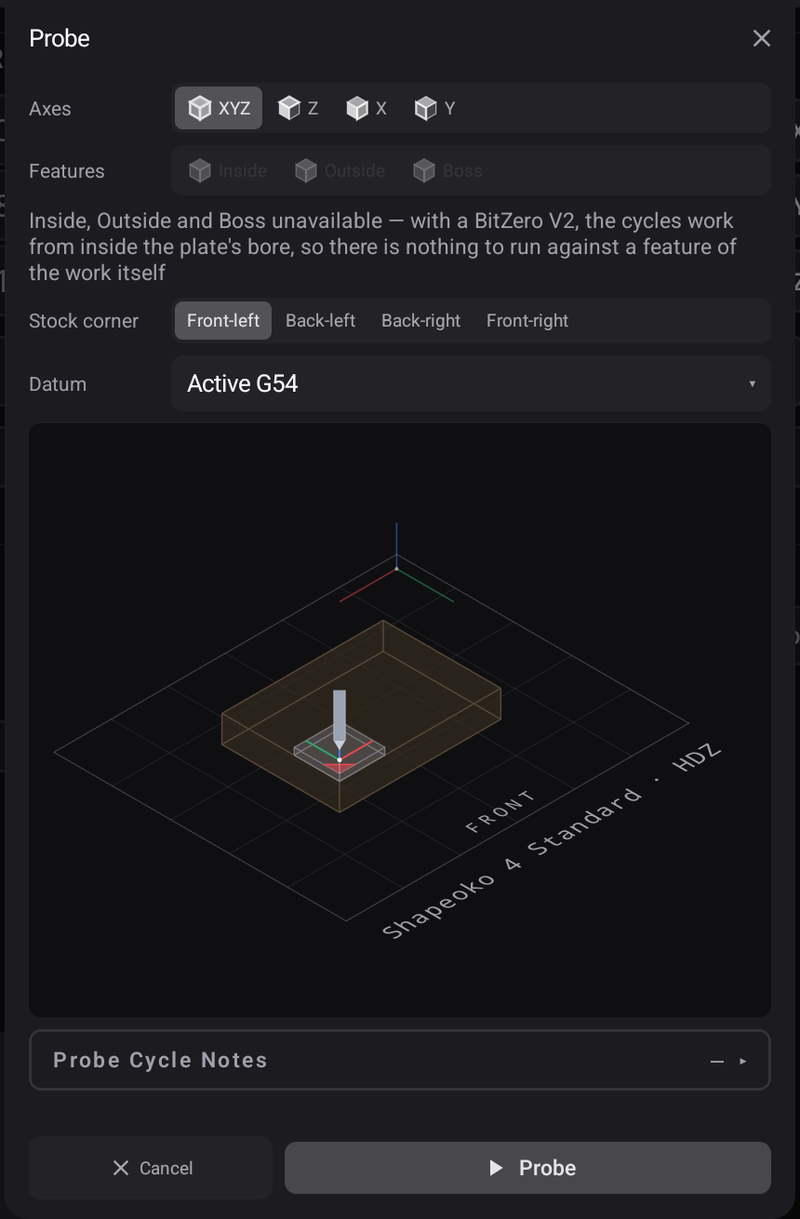
What your plate can do decides what the panel offers. A flat disc or an optical Z probe finds Z and nothing else, so Corner, X and Y are shown greyed out rather than hidden — the plate is what cannot do it, not the app. Set X and Y by hand instead: see Zeroing from a touched edge.
And plates do not all work the same way. Three shapes are supported, and the routine follows the shape:
| Shape | How it finds X and Y | Order |
|---|---|---|
| External edge — an L-block hooked on the material's corner | Touches the plate's outer faces; the datum is the plate's wall plus the tool's radius | Z, then X, then Y |
| Parallel bore — a plate with a round hole at the corner | Touches both walls of the hole and takes the middle; the tool's radius cancels | X and Y, then Z |
| Chamfered pocket — a plate with a shaped recess | Touches both walls of the pocket and applies the plate's own centre-to-corner offset | Z, then X, then Y |
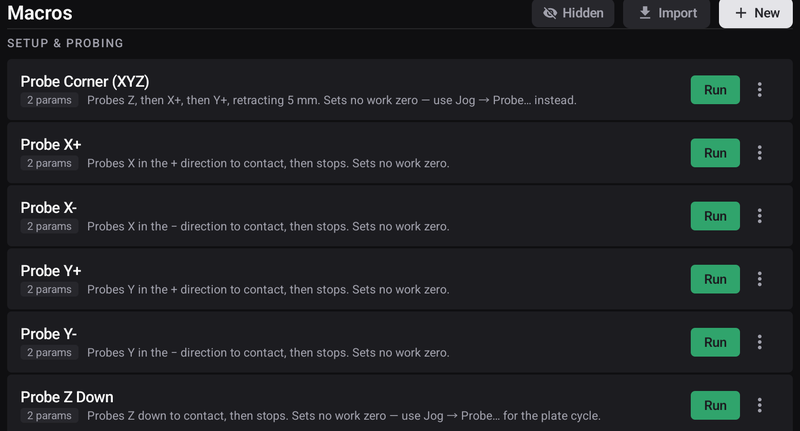
The same cycles are available as macros, which send standard G38.2 probing moves.
The two numbers that matter
Every probing cycle asks for:
Probe distance — how far to travel before giving up. Enough to reach the surface, not so much that a missed contact drives the tool a long way into something.
Feed rate — how gently to approach. Slow is accurate; slow is also the difference between a touch and a dent in a probe plate.
Defaults are provided and are sensible; adjust them for how far away the surface actually is.
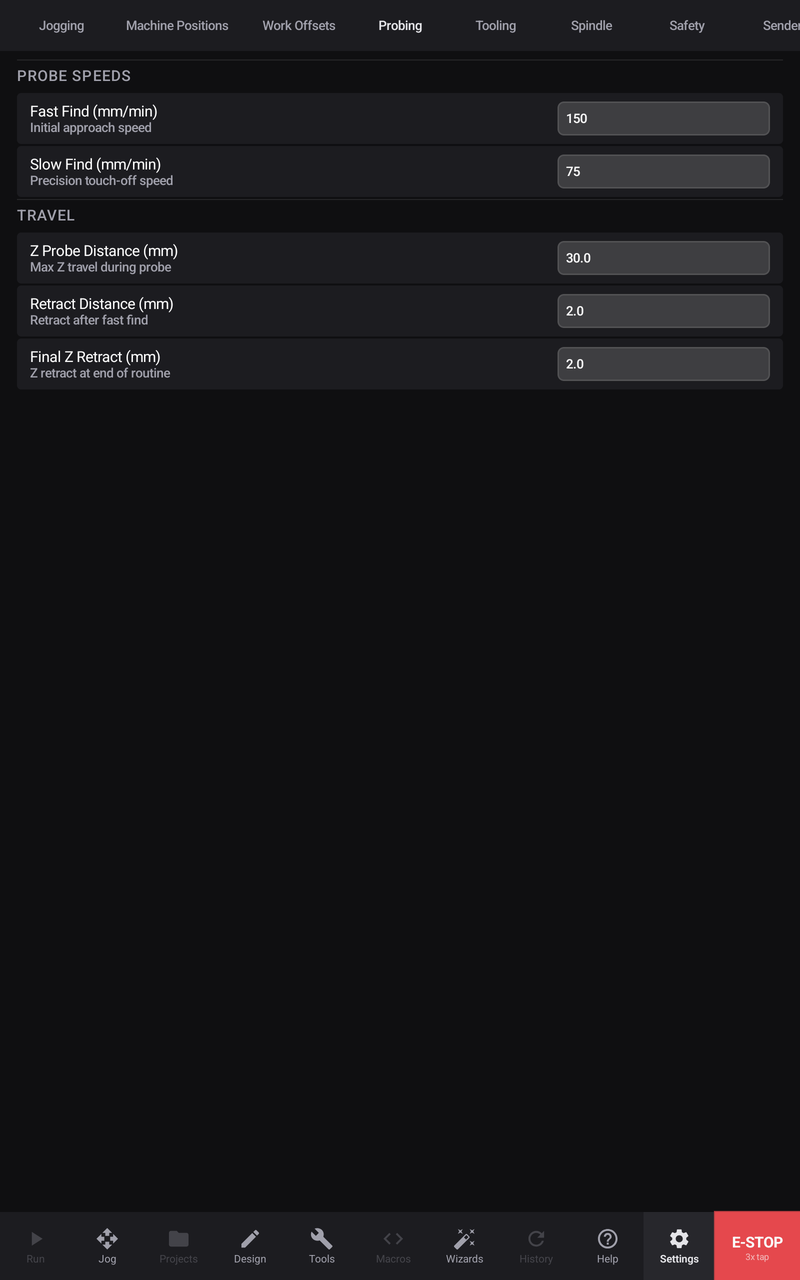
Plate thickness
A touch plate has thickness, and the machine stops at the top of it. That thickness is subtracted so that zero ends up on the material — it is configured in Settings → Probing, and it must match the plate you actually own.
Most corner plates have two thicknesses, not one. Hooked on the material's corner the body rests on the material; laid flat for a Z-only probe the underside lip rests on it instead, and the top face is further up. On one common plate the difference is 2.65 mm — nearly double the depth of a 3 mm pocket. The app keeps both numbers and uses the one that matches the cycle you ran.
Where a number is blank, it has never been published. Several vendors do not publish theirs at all, and one publishes six different values for the same probe across its own manuals. In those cases the app shows nothing rather than a plausible guess, and the cycle refuses until you measure your own plate and type it in. That is deliberate: a blank gets chased, a wrong number gets cut.