 PRIME MOTION
Your first job, end to end
This is the shortest complete path: bring in a program, tell the machine where the work is, look at what it is about to do, and run it.
1 · Home the machine
Jog → Home. Until this is done, most of the app is unavailable and no coordinate means anything.
2 · Bring in a program
Programs live in Projects. Create a project, then import G-code from Google Drive, Dropbox, or this device.
Tap a single file to load it, or Run Project to run a whole set in order.
See Projects and Files and storage.
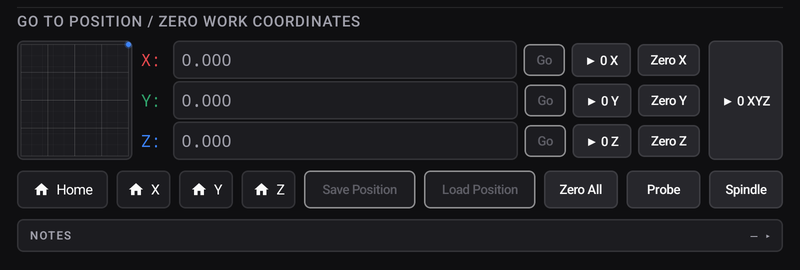
3 · Set work zero
Fix your material down, then jog the tool to the point the program calls zero — usually a corner of the stock, with Z at the top surface — and zero the axes.
This is the step that decides whether the job lands on the material or somewhere else. See Setting work zero.
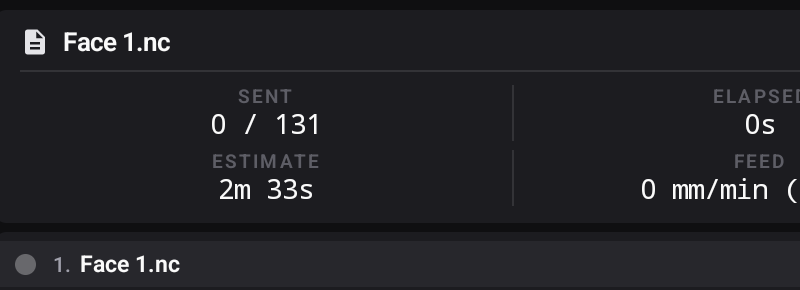
4 · Look at the Run screen before you press anything
Three free checks, each of which catches a different disaster:
- Is the toolpath sitting on the stock? If the bed looks empty, the job is not where you think it is. Do not start.
- What colour is the Safety button? The app has already read every line of the program. Amber is a warning, red is a violation.
- Is the machine name on the bed the machine you are standing at?
See The Run screen.
5 · Air run, if you want to be sure
Air Run runs the program above the material so you can watch the moves without cutting. On a first job with an unfamiliar file, it costs one run of the clock and nothing else.

6 · Start
Start streams the program. While it runs you can:
- Hold to pause with a controlled stop, then Resume.
- Overrides to trim feed, rapid and spindle live — see Feed and speed overrides.
7 · Afterwards
Every job lands in History with how it ended. If one is cut short, Wizards → Job Recovery can pick it up from the line it reached — see Recovering an interrupted job.