 PRIME MOTION
Settings — License
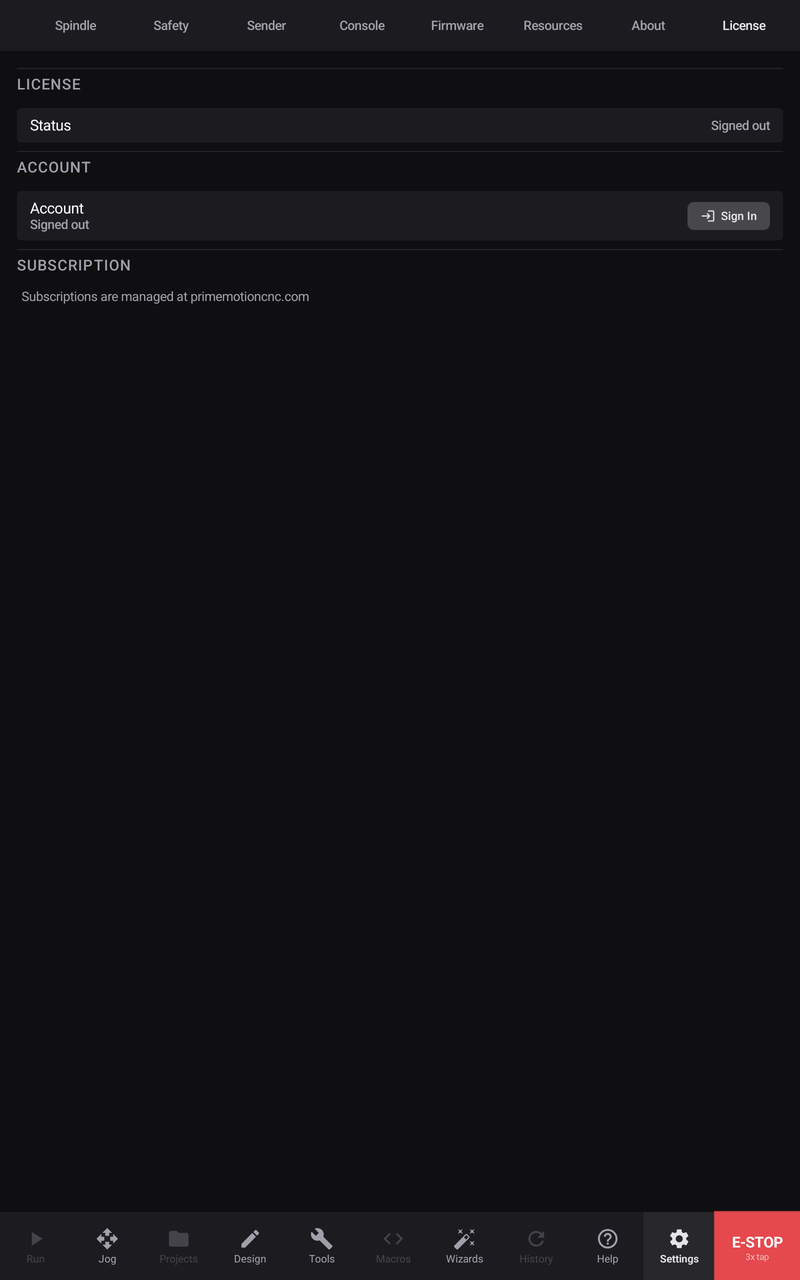
Prime Motion is a subscription. This tab is where you sign in, where you can see the state of that subscription, and where you find out how long the app will keep working if the workshop loses its internet connection.
Signing in
- Open Settings → License.
- Press Sign In.
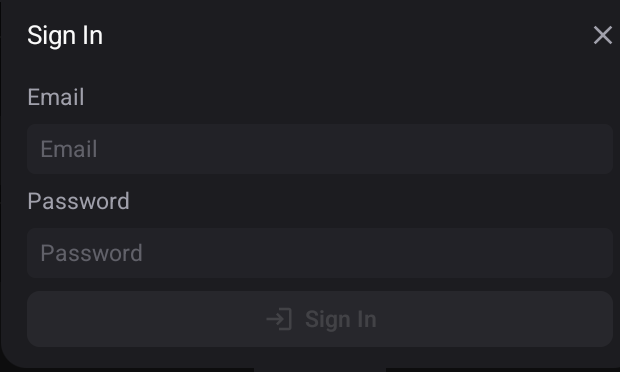
- Enter the email address and password for the account the subscription was bought with.
- Press Sign In.
Once you are signed in, the app checks your subscription with the account service and remembers the answer. It re-checks about once a day while it has an internet connection, quietly, in the background — you will not be asked to sign in again each morning.
Status
The Status row is the whole picture in one line.
| Status | What it means |
|---|---|
| Signed out | No account is signed in on this device |
| Active | A current subscription, checked recently |
| Active (trial) | You are inside the trial period |
| Active — verified offline | The app cannot reach the internet, and is running on the last answer it was given |
| License expired | The subscription reached its end date |
| Subscription canceled | The subscription was cancelled |
| No license on this account | Signed in successfully, but this account has never had a subscription |
When you are signed in, extra rows appear beneath it: which Plan you are on, the date it is Valid through, and — when the app is working from a cached answer — how much Offline use is left and when it Last verified.
Working without internet
A tablet or a shop PC at a machine is often nowhere near a router, and that must never be the reason a job stops. So the app does not need to be online to work.
When it cannot reach the account service, it falls back to the last answer it received and keeps going for ten days from that check. The Status row changes to Active — verified offline and an Offline use left row appears so you always know how much runway you have.
Verify Now forces the check immediately rather than waiting for the daily one. It is the right button to press after buying a subscription, after renewing one, or after bringing the device back into Wi-Fi range when you would rather not wait.
What needs a subscription, and what does not
Exactly three things require an active subscription:
| Requires a subscription | Always available |
|---|---|
| Starting a job — a single file, a project run, or resuming one | Opening and viewing designs already on the device |
| Exporting a program from Manufacturing | Jogging, homing, probing and zeroing |
| Creating a new design | The tool library, macros, wizards, history and every setting |
The dividing line is deliberate. Everything you have already made stays open to you whatever the state of the subscription — an operator can always open a design and look at it. What a subscription buys is making new work and cutting it.
Signing out
Sign Out on the Account row removes the account from this device and asks you to confirm first. Your designs, tool libraries, macros and machine profiles all stay exactly where they are — they belong to the device, not to the account.
Related
- Settings — About — version, hardware target and the open-source components
- The Run screen — where Start lives
- Posting a program — the export that a subscription covers